
Unlike traditional clickers that require Bluetooth pairing in your computer settings, separate Wi-Fi networks, or proprietary USB dongles:
- Zero Bluetooth Pairing: Never enter system settings or deal with dropped connections.
- Zero Network Requirements: Works even if your phone is on 5G/LTE and your laptop is on office Wi-Fi.
- Zero App Store Downloads: Runs natively in Mobile Safari or Chrome by scanning a QR code.
- Inaudible Frequencies: Transmits over 16.6 kHz to 18.6 kHz near-ultrasound pulses imperceptible to human ears.
- Full Remote Capabilities: Continuous touch scrolling, Play/Pause, Reset to Top, Camera Toggle, and Mirror Flip.
1. The Frustration of Traditional Wireless Clickers
Every presenter has experienced presentation clicker failure at the worst possible moment:
- Bluetooth Disconnects: Your operating system puts the Bluetooth device into low-power sleep mid-speech, causing input lag.
- Wi-Fi Subnet Isolation: Corporate, university, or hotel Wi-Fi networks block peer-to-peer WebSockets, preventing local network remote apps from discovering your computer.
- Lost USB Dongles: Modern laptops lack USB-A ports, requiring clunky dongles and adapters.
E Teleprompter reimagined wireless remote control using the one transmission medium present on every smartphone and computer in existence: sound.
2. How Silent Sound Wave Control Works (No Pairing Needed)
Just like a TV remote sends invisible light pulses to your television, E Teleprompter uses your smartphone speaker to send inaudible, high-frequency sound pulses directly through the air to your computer’s microphone.
Because these sound waves sit at high frequencies (above 16 kHz), they are completely imperceptible to human ears during recording, while standard laptop, webcam, and studio microphones detect them with near-zero latency (under 45ms).
Everything You Can Control from Your Phone
From across your studio or stage, your smartphone gives you full command over your teleprompter:
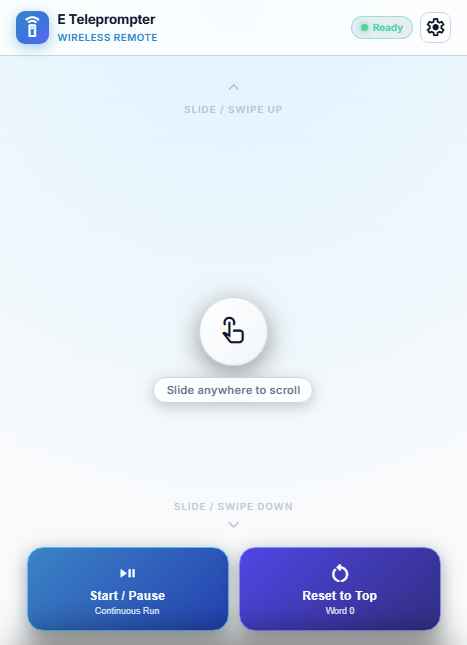
- Smooth Touch Scrolling: Slide your thumb anywhere on the screen up or down. The prompter glides fluidly at your exact reading speed.
- Start / Pause Prompting: Tap the large Start/Pause button anytime you need to pause for audience questions or take a quick sip of water.
- Reset to Top: Rewind your script instantly back to the first line with an automated 3-second countdown so you're ready for take two.
- Mirror Display Toggle: Flip the prompter text horizontally for physical 70/30 beam-splitter glass rigs with a single tap.
- Camera Tracking Toggle: Turn webcam gesture vision on or off touchlessly without walking over to your computer.
3. 100% Inaudible and Click-Free in Recordings
A common problem with DIY audio controls is that starting and stopping audio tones can produce annoying pops or static clicks audible on video microphones.
E Teleprompter solves this with smooth wave shaping:
- Silent Continuous Signals: Signals transition smoothly between commands so your computer hears them clearly without any clicking sounds on your studio microphone.
- Full Recording Privacy: Sound signals are processed directly inside your computer's browser in real time. Nothing is recorded, stored, or sent to any server.
- Reliable Range: At standard phone speaker volumes, the remote works reliably from 10 to 15 feet away — perfect for home studios, podcast desks, and lecture halls.
4. Step-by-Step Tutorial: Pairing Your Phone in 10 Seconds
Ready to use your smartphone as a wireless remote? Follow these simple steps:
- Open Studio: Open E Teleprompter on your desktop or laptop computer.
- Open the QR Modal: Click the Mobile QR button in the sidebar (or click the remote icon).
- Scan with Phone Camera: Point your iPhone or Android camera at the QR code and tap the link to open /remote in your mobile browser.
- Set Phone Volume: Ensure your phone is not on silent mode. Set your media volume to 75%–85%.
- Control the Prompter: Hold the big Scroll Down button to scroll, or tap Play/Pause to start!
The remote features dynamic continuous touch scrolling. You can swipe up and down on your phone screen just like browsing a web page — our acoustic modulation translates your touch velocity into proportional soundwave bursts!
5. Best Practices & Troubleshooting
- Volume Sweet Spot: 75% to 85% is ideal. 100% volume on cheap phone speakers can sometimes cause physical driver distortion, while below 50% may not reach across large rooms.
- Aim the Speaker: Place your phone on your podium, desk, or palm with the bottom speaker facing generally toward your laptop microphone.
- External Microphones: If using a directional shotgun mic, ensure it picks up ambient studio sound, or use your laptop's built-in array microphone as the acoustic receiver in sidebar device settings.
6. Comprehensive Studio Integration
The Acoustic Remote coordinates seamlessly with all other studio capabilities:
- Speech-to-Text Voice Flow (Read Guide): Use Voice Flow to track your speaking pace, and use your phone remote only for emergency stops or jumps.
- AI Gesture Vision (Read Guide): Toggle gesture vision on or off directly from your phone remote.
- 70/30 Beam-Splitter Glass (Read Guide): Tap the Mirror button on your phone to flip the computer display for teleprompter glass rigs.
Try the Wireless Remote Controller
Open the dedicated remote controller right now on your mobile device or launch the studio on your PC.